Built by WebbyCrown Solutions — Need setup, customization, or integration help? Talk to our team.


How to Set Up Bulk Discounts and Tiered Pricing in WooCommerce


Summarize This Article With AI
To offer bulk discounts in WooCommerce, start by choosing the quantity thresholds and prices that make financial sense for your store. Then use a suitable pricing extension to apply the rules to products, variations, or categories, show shoppers what they will pay, and verify every quantity threshold in the cart and at checkout.
For example, you might sell one unit for $40, offer a 5% discount when customers buy five units, and increase the discount to 10% at ten units. The best configuration depends on your costs, your product mix, and whether all eligible units or only units in a particular band receive the discount.
This guide explains how to plan, configure, and test WooCommerce quantity discounts while accounting for differences in pricing rules, plugin settings, and calculation methods.
What Are Bulk Discounts and Tiered Pricing?
A bulk discount is a lower price offered when a customer buys a qualifying number of items. Tiered pricing establishes several quantity bands, each with its own price or discount.
Consider a hypothetical product with a regular unit price of $40:
| Quantity | Discount | Unit price if that tier applies to all units |
|---|---|---|
| 1–4 | 0% | $40 |
| 5–9 | 5% | $38 |
| 10–24 | 10% | $36 |
| 25 or more | 15% | $34 |
Illustrative example only. The table assumes an all-unit pricing model. A particular plugin may offer other calculation methods, so its checkout behavior must be verified.
These rules can suit consumables, office supplies, wholesale orders, repeat purchases, and other products that customers commonly order in multiples. They are not automatically worthwhile for products with thin margins or sharply rising fulfillment costs.
Choose the Right Discount Calculation Method
Two systems that both advertise “tiered pricing” can calculate the order total differently.
All-unit bulk pricing
Once a quantity threshold is reached, the qualifying rate applies to every eligible unit in the line. In the example above, ten units would cost 10 × $36 = $360.
Incremental tier pricing
Different groups of units may receive different prices. For instance, the first four units could remain at $40, the next five at $38, and the tenth at $36. With these illustrative rules, ten units would cost 4 × $40 + 5 × $38 + 1 × $36 = $386.
The distinction matters because some merchants expect one behavior but accidentally configure another. Confirm the chosen extension's rule-processing method rather than assuming every “bulk” setting works alike. WooCommerce's Dynamic Pricing documentation describes examples of bulk pricing and special-offer processing in its own extension; these are not universal settings for every third-party plugin.
Also decide how you want to express the discount:
| Pricing type | Example | Best fit |
|---|---|---|
| Percentage discount | 10% off eligible items | Promotional quantity offers |
| Fixed amount off | $3 off each eligible unit | Simple per-unit savings |
| Fixed selling price | $35 per eligible unit | Agreed wholesale price levels |
| Cart-line adjustment | Discount calculated at an eligible line level | Specific promotion structures |
For a more detailed explanation of these pricing methods, see WebbyCrown's quantity discount price types guide. Verify the current version and behavior of your own extension before copying any specific configuration.
Step 1: Define the Buyer and Business Goal
Start with the customer behavior you want to support:
- B2C retail: Encourage practical larger purchases, such as buying six units instead of four.
- Wholesale/B2B: Make repeat quantity breaks visible and predictable.
- Inventory promotion: Discount selected products without unintentionally changing every category.
- Agency/client store: Define rules that staff can maintain and test without relying on custom code for every change.
Choose the products, customer groups, minimum quantities, and offer dates before installing or configuring a pricing extension. Do not add a broad store-wide rule simply because the interface makes it easy.
Step 2: Protect Your Margin Before Choosing Tiers
A bigger order is not necessarily a more profitable order. Calculate the unit economics before deciding how generous the discount should be.
Suppose the regular price is $40 and the product plus variable fulfillment costs are $24 per unit:
| Discount | Selling price | Gross profit per unit | Gross margin |
|---|---|---|---|
| 0% | $40 | $16 | 40.0% |
| 5% | $38 | $14 | 36.8% |
| 10% | $36 | $12 | 33.3% |
| 15% | $34 | $10 | 29.4% |
Illustrative arithmetic, not actual store performance. Additional costs such as payment fees, returns, taxes, and fixed overhead can affect the final result.
Pick price tiers based on your actual costs and goals. Do not assume a higher average order value will automatically compensate for lower unit margins.
Step 3: Select the Products and Rule Scope
Depending on the extension, you may be able to apply rules to:
- Individual products. Appropriate when only one or two SKUs should receive the offer.
- Product variations. Useful for size, color, or packaging variations—but check whether quantities are counted per variation, across variations of the same product, or per cart line.
- Categories or tags. Useful for larger groups of similar products. Verify what happens when an item belongs to more than one group.
- Customer roles or countries. Potentially useful for B2B or market-specific offers, if the chosen extension actually supports them.
- Global rules. Convenient for a broad campaign, but risky when the store contains different costs or margins.
Prefer the narrowest scope that solves the pricing problem. Review existing sales, coupons, and category-wide offers for conflicts.
Step 4: Create Quantity Bands
Using your pricing extension's documented configuration, define the eligible products, quantity thresholds, discount types, and any additional conditions. The menu names and fields vary by plugin.
Here is a planning table you can prepare before configuration:
| Minimum units | Maximum units | Planned all-unit discount |
|---|---|---|
| 1 | 4 | None |
| 5 | 9 | 5% |
| 10 | 24 | 10% |
| 25 | No upper limit | 15% |
Check for overlapping ranges, missing boundaries, and unintended behavior above the final tier. If your pricing plugin supports quantity steps or minimum/maximum purchase quantities, decide whether those restrictions are actually needed. A discount threshold is not necessarily a mandatory purchase minimum.
Step 5: Watch for Pricing Cliffs at Thresholds
One of the most important checks is whether buying more units could produce a lower order total.
With the example all-unit tiers:
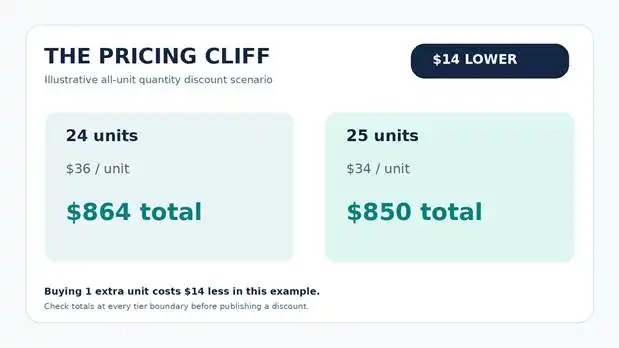
- 24 units at $36 = $864.
- 25 units at $34 = $850.
The customer gets an extra unit but pays $14 less overall. That might be an intentional incentive, but it could also be an expensive pricing mistake.
Before launch, calculate totals just below, exactly at, and just above every tier boundary. If the totals behave unexpectedly, revise the discount rates, ranges, or calculation method before making the rules available to customers.
Illustrative all-unit pricing example; not a screenshot or plugin test.
Step 6: Make the Savings Clear on the Product Page
If customers cannot see the offer, they may never add enough items to qualify.
A useful product-page message might be:
Buy 5–9: save 5% · Buy 10–24: save 10% · Buy 25+: save 15%
A comparison table can be effective when there are several quantity bands. Depending on the extension, other display options may include labels, radio controls, or dropdowns.
Make sure the displayed unit prices, quantity selector, cart line total, and checkout total agree. Disclose any restrictions such as customer eligibility, exclusions, or limited promotional dates.
Step 7: Test Conflicts, Coupons, and Checkout Totals
Do not stop after a rule appears to work on one product page. Test at least these cases:
| Test | Expected question |
|---|---|
| One unit below a threshold | Does the earlier price still apply? |
| Exactly at a threshold | Does the next tier start correctly? |
| One unit above a threshold | Is the total sensible? |
| Two eligible products | Are quantities combined or separate as intended? |
| Different variations | Does the extension use the expected quantity basis? |
| Coupon plus bulk discount | Can discounts stack, and should they? |
| Sale price plus bulk discount | Which starting price does the rule use? |
| Different customer role or country | Is eligibility enforced correctly? |
| Cart, checkout, and order confirmation | Is the final price consistent throughout? |
Also verify taxes, shipping rules, rounding, and variable-product behavior. If your existing setup requires a custom checkout integration, that may call for professional development rather than another generic pricing plugin.
Which WooCommerce Bulk Pricing Plugin Should You Choose?
Evaluate features against your actual requirements instead of purchasing solely on a long feature list.
| Buying criterion | What to verify |
|---|---|
| Pricing method | All-unit bulk pricing, fixed unit price, or any incremental processing you require |
| Scope | Product, variation, category, tag, or store-wide rules |
| Eligibility | Customer role, country, or other conditions you truly need |
| Visible offer | Accurate quantity pricing before checkout |
| Rule conflict control | Coupon/sale-price interactions and priority behavior |
| Maintenance | Import/export and reliable editing workflows |
| Compatibility | Your exact WordPress, WooCommerce, and server environment |
| Documentation and support | Useful product-specific guides and current support terms |
A Product Option from WebbyCrown Store
WooCommerce Dynamic Pricing Rules for Discounts is a WebbyCrown Store plugin for product- and variation-level discounts, category and tag rules, country-based conditions, quantity controls, and multiple frontend pricing displays. Its published product page also describes fixed-amount discounts, percentage discounts, fixed selling prices, cart-line discounts, and rule import/export.
The plugin is a potential fit for merchants who need no-code pricing rules within WooCommerce. However, it is not a complete warehouse, accounting, tax, shipping, or ERP system. Check the product page for currently supported WordPress/WooCommerce versions and license terms, and verify your intended pricing scenario in a test environment.
When a Standard Pricing Plugin Is Not Enough
A plugin may not cover every store's requirements—for example, an unusual pricing calculation that depends on outside systems, a multi-step business approval process, or a custom checkout integration.
For those cases, WebbyCrown offers WooCommerce development and integration services. Consider custom work when your requirements cannot be implemented safely with documented extension features, rather than forcing a plugin into a workflow it does not support.
When Should You Avoid Quantity Discounts?
Quantity-based offers may be a poor fit when unit margins are already narrow, customers rarely need multiples, storage and fulfillment costs rise rapidly with larger orders, or promotions would displace more profitable regular purchases.
In those circumstances, a limited coupon, carefully designed bundle, approved wholesale price list, or ordinary fixed price may be more appropriate.
Common Bulk Pricing Mistakes
- Pricing by discount percentage alone. Always verify gross margin and order contribution, not only the percentage shown to customers.
- Assuming every plugin calculates tiers the same way. Confirm the quantity basis and all-unit versus incremental behavior where applicable.
- Ignoring threshold cliffs. Compare totals at adjacent quantities around every price break.
- Overlapping product, category, and global rules. Review how conflicts are resolved and whether coupons can stack.
- Hiding the offer until checkout. Clearly communicate price tiers before the shopper commits to a quantity.
- Skipping test orders. Test the real checkout with representative products and conditions before publishing the discount.
Frequently Asked Questions
Can WooCommerce automatically discount products based on quantity?
Yes, WooCommerce supports extensions that can calculate quantity-based discounts. The available pricing methods and rule conditions depend on the extension, and must be configured and tested.
What is the difference between a bulk discount and tiered pricing?
A bulk discount reduces prices after a qualifying quantity. Tiered pricing uses multiple quantity bands with different prices or discounts. The actual calculation may be all-unit or incremental, depending on the pricing method.
Can I set discounts for only one product category?
Yes, if your extension supports category-specific pricing rules. Check whether it counts each product separately or combines category quantities, and how it handles products in multiple categories.
Can customers combine coupons with quantity discounts?
That is plugin- and configuration-dependent. Test stacking and priority rules before offering both promotions.
Does every wholesale store need dynamic pricing?
No. Some merchants are better served by a fixed wholesale price list, customer-specific contracts, or a separate quoting process. Choose the approach that matches your buying patterns and operational controls.
WooCommerce Bulk Pricing Checklist Before Enabling Discounts
Before activating quantity-based discounts in your WooCommerce store, verify the following:
- Your discount tiers protect your profit margins.
- Pricing rules apply only to eligible products.
- Quantity thresholds and calculations are correct.
- Discounted prices display clearly on product pages.
- Coupons and sale prices do not create unintended discounts.
- Cart and checkout totals match the advertised prices.
- Pricing rules are retested after major plugin or WooCommerce updates.
A successful bulk pricing strategy makes discounts easy for customers to understand while keeping pricing accurate and commercially sustainable.