Built by WebbyCrown Solutions — Need setup, customization, or integration help? Talk to our team.


WooCommerce Picking and Packing Checklist: From Order to Shipment


Summarize This Article With AI
A reliable WooCommerce picking and packing process starts with confirming which orders are ready to fulfill, assigning someone to each order, checking products and quantities at the shelf, verifying the packed parcel, and recording shipment details before marking the work complete. Even a small store benefits from clear handoffs between the person who picks an item, the person who packs it, and the person who ships it.
This practical checklist helps WooCommerce store owners and warehouse teams organize those handoffs. It also explains when WooCommerce's built-in order and fulfillment tools may be enough—and when a dedicated warehouse workflow can help.
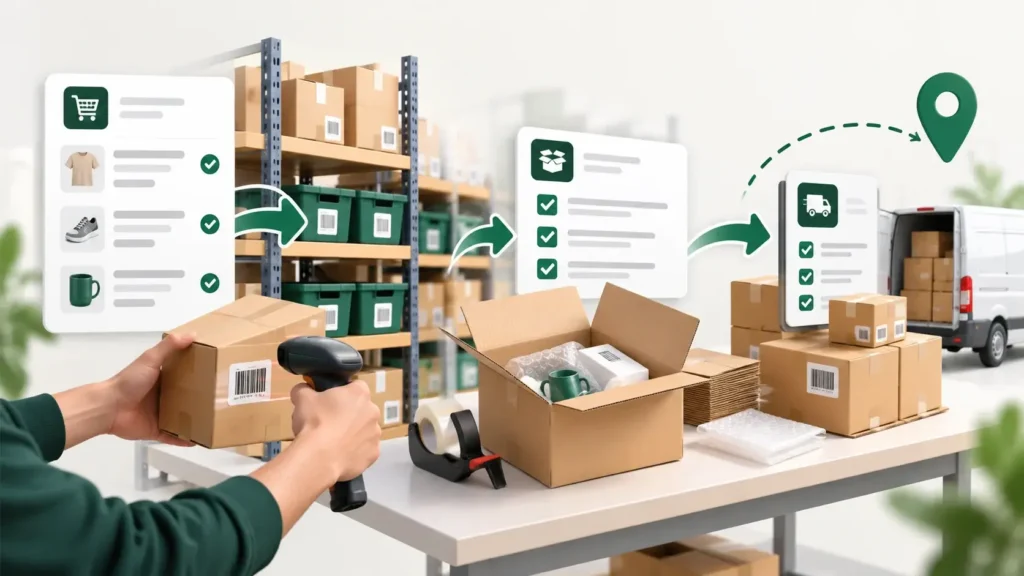
Conceptual illustration: order verification → picking → packing → shipping (not a live plugin screenshot).
Picking, Packing, and Shipping: What Happens at Each Stage?
Picking means locating the exact items and quantities needed for an order. Packing means verifying those items, protecting them appropriately, and preparing the parcel. Shipping means arranging carrier handoff, recording tracking information, and communicating the shipment status.
| Stage | Main question | Useful record | Typical owner |
|---|---|---|---|
| Order release | Is the order paid or otherwise authorized to ship? | Order status and exception notes | Store manager |
| Picking | Did we collect the correct SKUs and quantities? | Pick confirmation and bin location | Picker |
| Packing | Does the parcel match the order and packing instructions? | Pack verification | Packer |
| Shipping | Was the correct label attached and parcel handed over? | Carrier, tracking, and dispatch event | Shipping staff |
| Exception handling | Who owns a missing or damaged item? | Reason, owner, next action | Warehouse manager |
This is a recommended operating model, not a claim that every WooCommerce installation automatically provides these separate staff roles or records.
Understand WooCommerce Order Statuses Before Building a Workflow
In a typical paid physical-product order, Processing means payment has been received and the order is awaiting fulfillment; Completed indicates that fulfillment is complete. An order On hold may still require payment verification, depending on its payment method. Do not send orders to the picking team simply because they appear in the orders list.
WooCommerce also documents fulfillment records for shipment items, partial fulfillments, carriers, tracking, and customer notifications. Those fulfillment records are different from an internal warehouse task such as *Picking* or *Packing*. A shop can track a shipment without necessarily having a picker assignment or barcode-based bin workflow.
For the current behavior of core order and fulfillment features, consult the official WooCommerce order statuses and order fulfillment documentation.
Step 1: Release Only Eligible Orders for Picking
Start each shift with a short queue review. Identify orders that have cleared your payment and fraud-review rules, then separate any orders that are on hold, canceled, awaiting a customer response, or affected by an inventory exception.
For each eligible order, confirm the order number, promised dispatch window, product SKUs, variation options, quantities, and any special handling requirements.
Handoff rule: A specific person should own the decision to release an order. Pickers should not have to guess whether a payment or address issue has already been resolved.
Step 2: Assign a Picker and Identify Product Locations
Give each released order a clear owner. In a one-person store, that can be the person already processing orders. In a multi-person operation, assignment reduces the chance that two workers collect the same order while another sits untouched.
Your pick list or digital picking view should show the SKU, product name, variation, required quantity, and storage location when available. Locations such as Aisle B / Shelf 03 / Bin 12 are illustrative examples; define your own consistent location naming scheme.
Before marking an item picked, compare the physical product and its label against the order. Barcode scanning may help staff confirm the intended product when supported by the scanning workflow, but it does not replace checking product condition or size and color details.
Step 3: Check Quantities and Handle Picking Exceptions
A picked quantity should match the ordered quantity before the package moves to packing. If a product is missing, damaged, unlabeled, or in the wrong bin, do not quietly substitute another item.
Record the exception and assign an owner who can decide whether to locate replacement stock, contact the customer, adjust the order appropriately, or hold fulfillment. The action depends on your store policies and the actual inventory and payment systems in use.
Example: A Pick That Does Not Match the Order
Suppose order #1042 contains two medium T-shirts and one ceramic mug. The picker finds both T-shirts but discovers that the mug in its listed bin is damaged.
The correct operational response is to stop that item's handoff, note the damage, and have the designated manager decide the next action. Do not mark the entire order ready to ship just because two of the three units were collected.
This is an illustrative example, not a recorded WebbyCrown customer case or live plugin test.
Step 4: Make Packing a Separate Verification Point
Before sealing the parcel, the packer should compare the physical items against the final order contents. Confirm variations, quantities, product condition, inserts, and any agreed handling instructions.
Choose suitable protection for fragile or sensitive items, check the shipping address, and ensure the shipping label corresponds to the same order and parcel. For multi-parcel shipments, maintain a clear record of which items are in each parcel.
A helpful policy is that the person packing should be able to tell what was verified, even when the picker is no longer present. This is why a visible handoff status or packing check can matter more than adding another complicated dashboard.
Step 5: Record Shipment and Customer Tracking Details
Do not confuse printing a shipping label with handing a parcel to the carrier. Store the appropriate carrier and tracking information and use a dispatch confirmation that reflects your real fulfillment process.
Where the configured WooCommerce fulfillment system supports it, shipment records can contain item quantities, carrier details, tracking numbers, and customer notification settings. Check the actual settings before assuming a specific email will be sent.
Only mark an order or fulfillment as complete when its shipped items and order-level state match your business process. For partial shipments, verify the remaining items are still visibly outstanding rather than silently closing the whole order.
Step 6: Build a Simple Ownership and Exception Log
A warehouse workflow should make it obvious who has the order now, what the last completed check was, and what is preventing its next action.
| Problem | Immediate response | Who should own the follow-up? |
|---|---|---|
| Wrong SKU or variation picked | Return item to picking; verify exact SKU | Picker or lead |
| Insufficient available item | Hold affected work; confirm stock and customer options | Store/warehouse manager |
| Damaged item at packing | Replace or escalate before sealing | Packer and manager |
| Address or shipping-label mismatch | Stop dispatch; review order details | Shipping lead |
| Tracking saved but parcel not handed off | Keep shipment status aligned with actual handoff | Shipping lead |
These are suggested SOP controls. They do not imply that every plugin automatically enforces a hold or a manager approval.
Step 7: Decide Whether You Need a Warehouse Workflow Plugin
For a smaller store with few orders and one person handling the process, WooCommerce's order management and fulfillment features plus a documented checklist may be sufficient.
A dedicated workflow becomes more relevant when you have multiple pickers, reusable picking and packing stages, bin locations, barcode-assisted checks, handoff accountability, or a need for staff to work without full WordPress administration access.
A Relevant Option from WebbyCrown Store
WooCommerce Multi Warehouse Plugin is designed around warehouse order processing. Its published product information describes a visual fulfillment board, configurable stages, picker assignments, product aisle/shelf/bin details, barcode-assisted work, shipping-tracking settings, order history, and a frontend staff portal.
That makes it a potential fit for stores wanting a more structured pick–pack–ship workflow inside WooCommerce. However, despite the product name, it does not allocate inventory quantities by warehouse, automatically route orders by warehouse stock, or replace a full warehouse management system. If your primary problem is multi-location stock allocation or replenishment, assess an inventory-specific solution instead.
For exact product configuration and the available portal features, see WebbyCrown's separate WooCommerce warehouse plugin guide. This article is an operational checklist, not a substitute for version-specific setup instructions.
If your store needs a custom shipping, ERP, or fulfillment integration beyond supported plugin settings, review WebbyCrown's WooCommerce development services rather than assuming an off-the-shelf workflow will cover it.
Daily WooCommerce Picking and Packing Checklist
Use this checklist for each batch or shift; adapt it to your staffing, product types, shipping rules, and quality requirements.
- Order ready: Payment/authorization and exceptions reviewed before release.
- Owner assigned: Picker or fulfillment owner clearly identified.
- Items verified: SKU, variation, quantity, and storage location checked.
- Exceptions recorded: Missing, damaged, or substituted items resolved or held.
- Pack checked: Contents, condition, protection, and shipping address verified.
- Shipment recorded: Label, carrier, tracking, and handoff status match reality.
- Open work visible: Partially fulfilled orders and unresolved issues remain assigned.
The goal is not to create paperwork for its own sake. It is to give every order a clear owner and a reliable next step, so staff and customers are not left guessing what happened between checkout and dispatch.
Frequently Asked Questions
Is picking the same as packing in WooCommerce?
No. Picking means collecting the ordered products; packing means verifying and preparing those products for shipment. One person may perform both tasks, but treating them as separate checks can make mistakes easier to spot.
Does WooCommerce support shipment tracking and partial fulfillment?
WooCommerce documents fulfillment records that can include shipped items, partial fulfillments, tracking, and customer notifications. Confirm that the relevant fulfillment functionality is enabled and compatible with your current setup.
Do I need barcode scanning for every WooCommerce store?
No. A small catalog with low order volume may work well with careful manual checks. Scanning becomes more useful when similar SKUs, shared shelves, or multiple pickers make identification errors more likely.
Can WebbyCrown's warehouse plugin assign stock to different warehouses?
No. The product's published description explicitly excludes warehouse-level stock allocation and stock-quantity tracking by location. Its focus is order processing and warehouse staff workflow.
When should I add dedicated picking and packing stages?
Consider them when several people handle the same order, exceptions get lost between shifts, or managers need a clear view of who owns each outstanding shipment. Start with the minimum stages your team can consistently maintain.