Built by WebbyCrown Solutions — Need setup, customization, or integration help? Talk to our team.



Advance Search Bar
Availability
❌ Odoo Online
✅ Odoo.sh
✅ On Premise
Product Version
19.0
$114.15

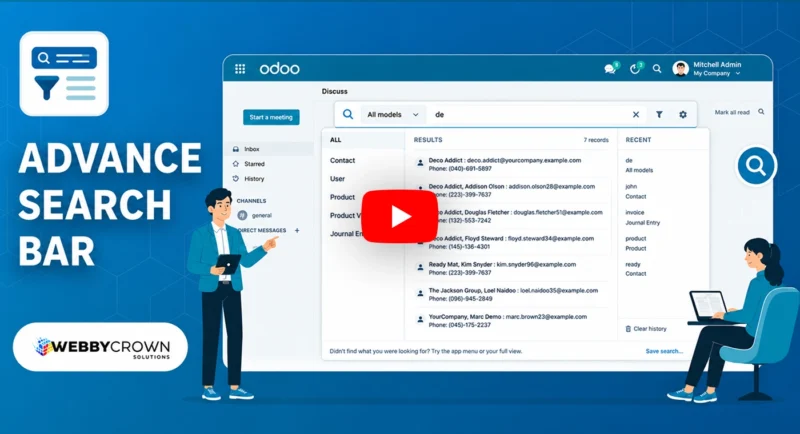
Advance Search Bar - Odoo Module for Multi-Model Search, Shortcuts & Favorites
What Is Advance Search Bar?
The default Odoo backend search only works within the model you are currently viewing. To find a customer record, you navigate to Contacts. To find a sales order, you go to Sales. Every search requires switching modules, and there is no way to find records across Odoo from one place. Frequently used filters, saved searches, and favorite views are not preserved between sessions, so users repeat the same lookups every day.
Advance Search Bar adds a persistent, always-visible global search bar to the Odoo backend that lets users search one model or all models simultaneously from one location. Saved searches, shortcuts to list and kanban views, dropdown layout preferences, and per-user personalization settings are all managed from the search bar settings and user preferences tab - no coding required.
Key Benefits

Always-Visible Persistent Search Bar
A fixed global search bar stays visible throughout the Odoo backend - search any record without navigating to the right module first.

Multi-Model Search From One Bar
Search one model or all models simultaneously and see grouped results from customers, orders, invoices, and other records in a single dropdown.

Saved Searches and Favorites
Save named searches as favorites, reduce daily repeat lookups, and set default favorites per user so frequently used searches are always ready.

Shortcuts to Common Views
Create shortcuts to list views, kanban boards, and new-record actions for the models your team uses most - accessible directly from the search bar.

Per-User Search Personalization
Each user controls their dropdown layout, theme, model scope, and persistence preferences independently from the user preferences tab.

Flexible Dropdown Layouts
Choose between standard list, side-rail panel, or stacked top-rail layout - each with different grouping and visual styles to match how your team works.
Modules & Features
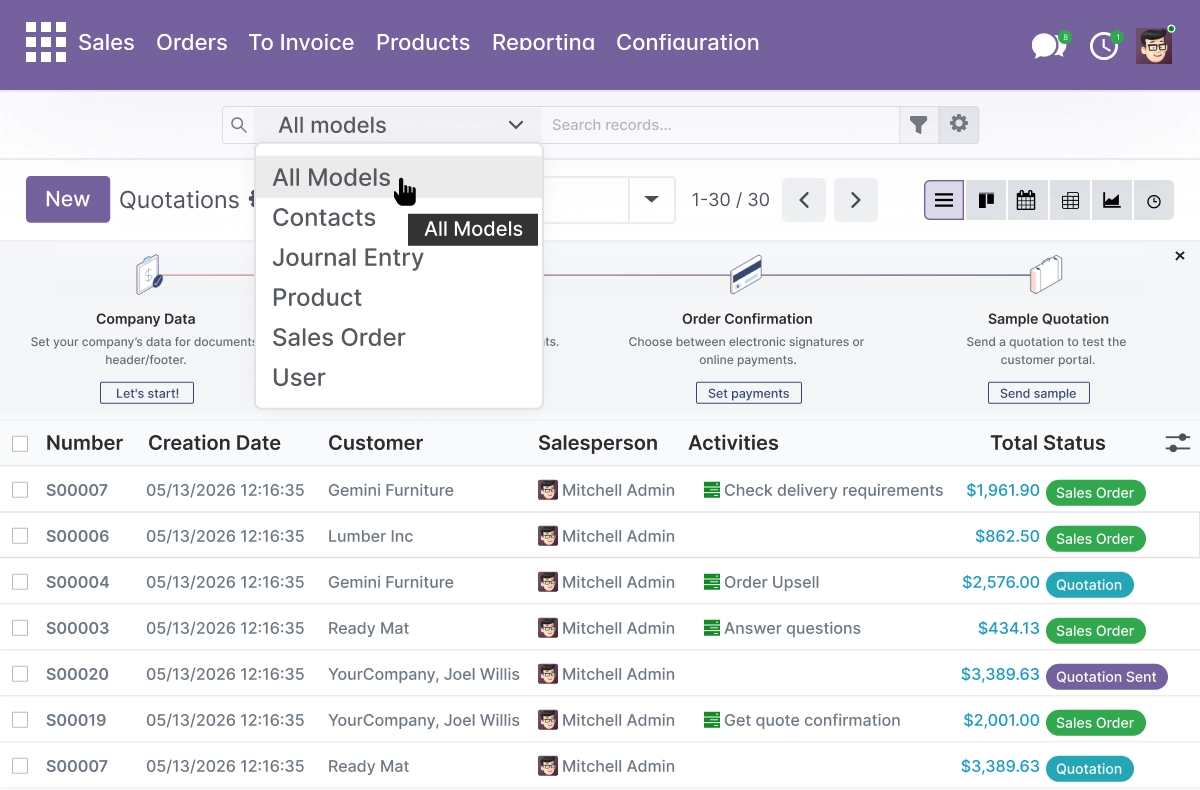
Model Allowlist - Control Which Models Are Searchable
Create and manage searchable model lists to keep your global search scope structured and easy to control.
- Select All Models to search across every accessible model simultaneously from one bar
- Choose specific models - Contacts, Journal Entry, Product, Sales Order, or User - to limit search scope to what your team needs
- The model selector dropdown shows only the models in your allowlist, keeping results focused and relevant
- Apply the allowlist to all users or restrict to specific security groups from admin settings
- Update model scope at any time without code changes
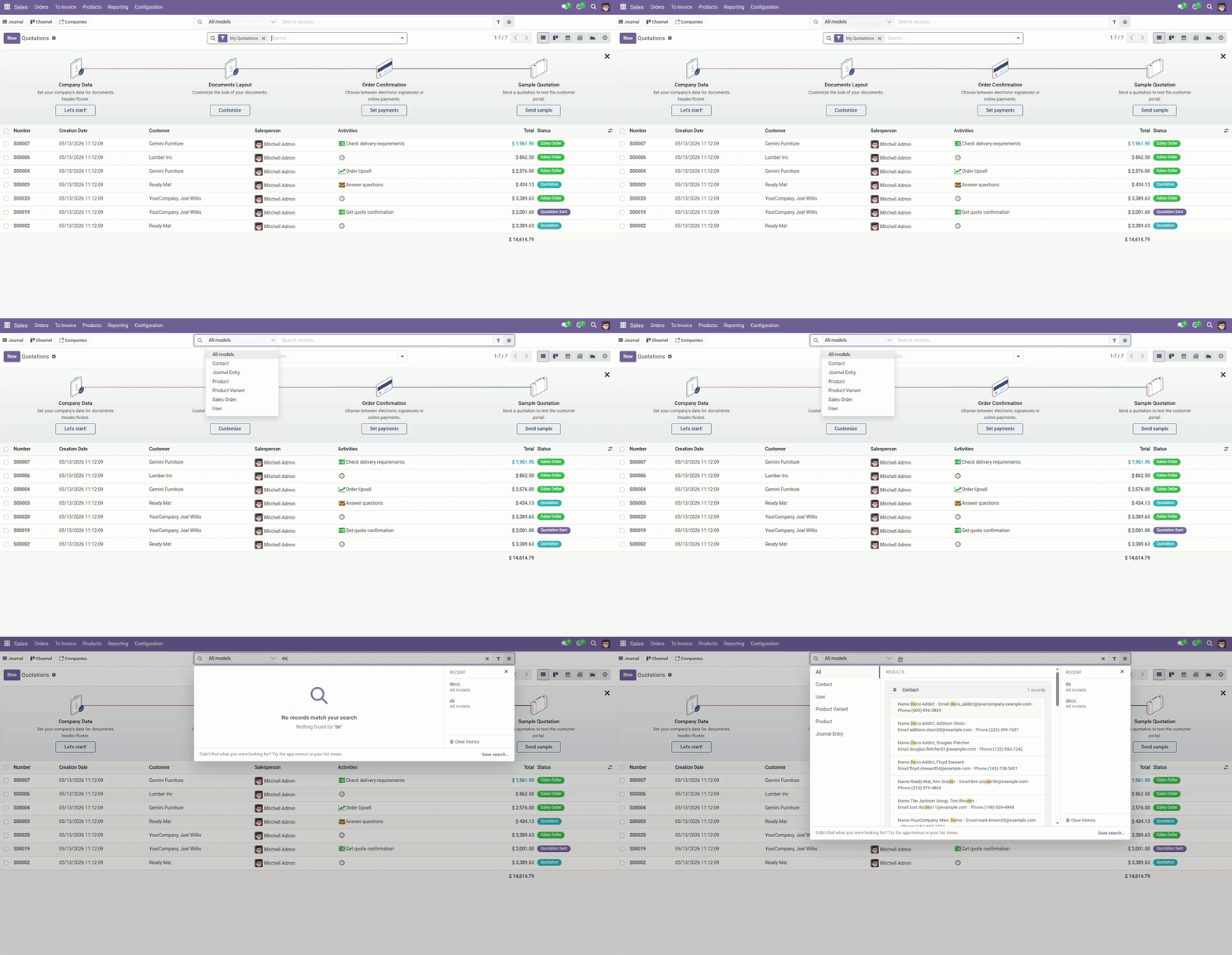
Flexible Layout - Standard, Panel, or Stacked Dropdown
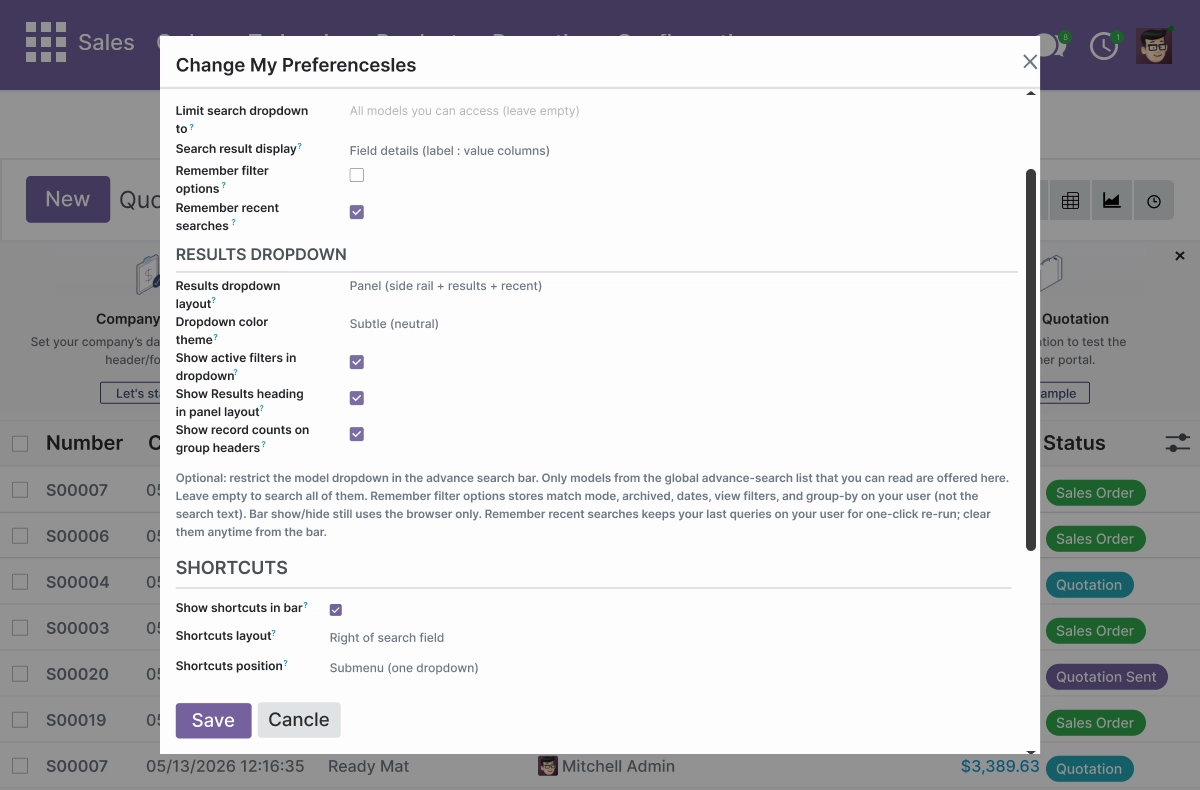
Choose the dropdown layout that fits your workflow, whether you prefer a compact list, a side-rail panel, or a stacked top rail with accordion recent.
- Set Results dropdown layout to Standard, Panel (side rail + results + recent), or Stacked directly from Change My Preferences
- Choose Dropdown color theme: Subtle (neutral) or colorful - applied per user
- Toggle Show active filters in dropdown, Show Results heading in panel layout, and Show record counts on group headers independently
- Enable Remember filter options to persist match mode, archived, dates, and view filters between sessions (not the search text)
- Enable Remember recent searches to keep last queries available for one-click re-run from the bar
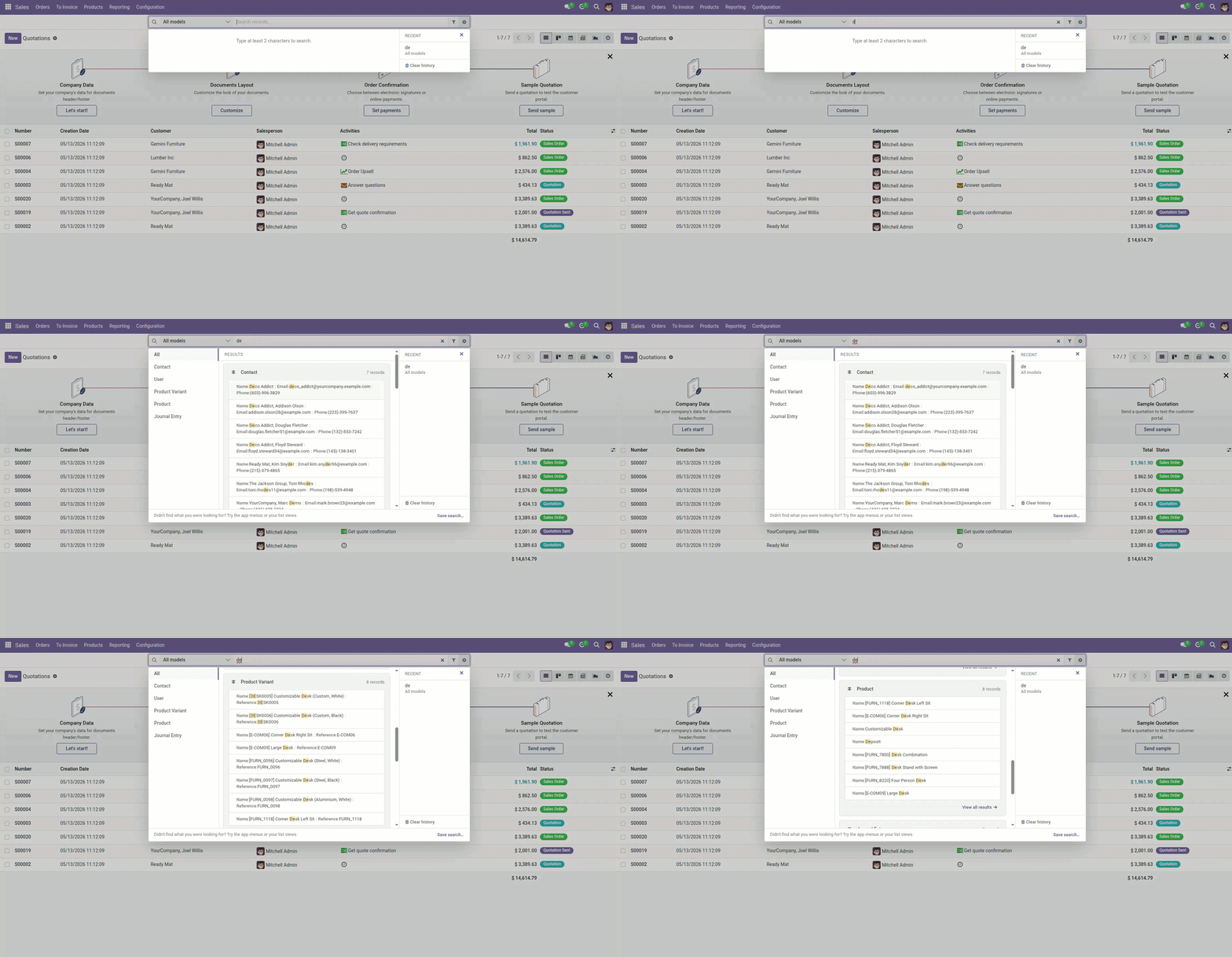
Multi-Model Search - Search One Model or All Models
Maintain complete search behavior with model scope, match mode, archived control, and date filters for better visibility and control.
- Search across All Models simultaneously or select a specific model - Contacts, Sales Order, Journal Entry, Product, or User - from the dropdown
- Search result display shows Field details in label : value columns for fast record identification without opening each record
- Set match mode to Contains, Starts with, or Exact match from the Search Options panel in the dropdown
- Toggle Include archived to show archived records alongside active ones directly from Search Options
- Filter results by creation date using the Created on (global) From and To date pickers in Search Options
Shortcuts - Quick Access to Lists, Kanban, and New Records
Move between common views with shortcuts to lists, kanban boards, or new-record actions while keeping a full per-user shortcut set.
- Add shortcuts in the Model | Open as | Label table - choose Open as: List (standard table), Kanban, or New record (blank form)
- Set a custom Label for each shortcut - it appears as a labelled button in the shortcuts strip next to the search bar
- Configure Shortcuts position as Submenu (one dropdown grouped by model) or one button per shortcut
- Set Shortcuts layout to Right of search field to keep the bar clean and accessible
- Export shortcuts (JSON) and Import shortcuts (JSON) buttons are available directly in the shortcuts panel for backup and sharing
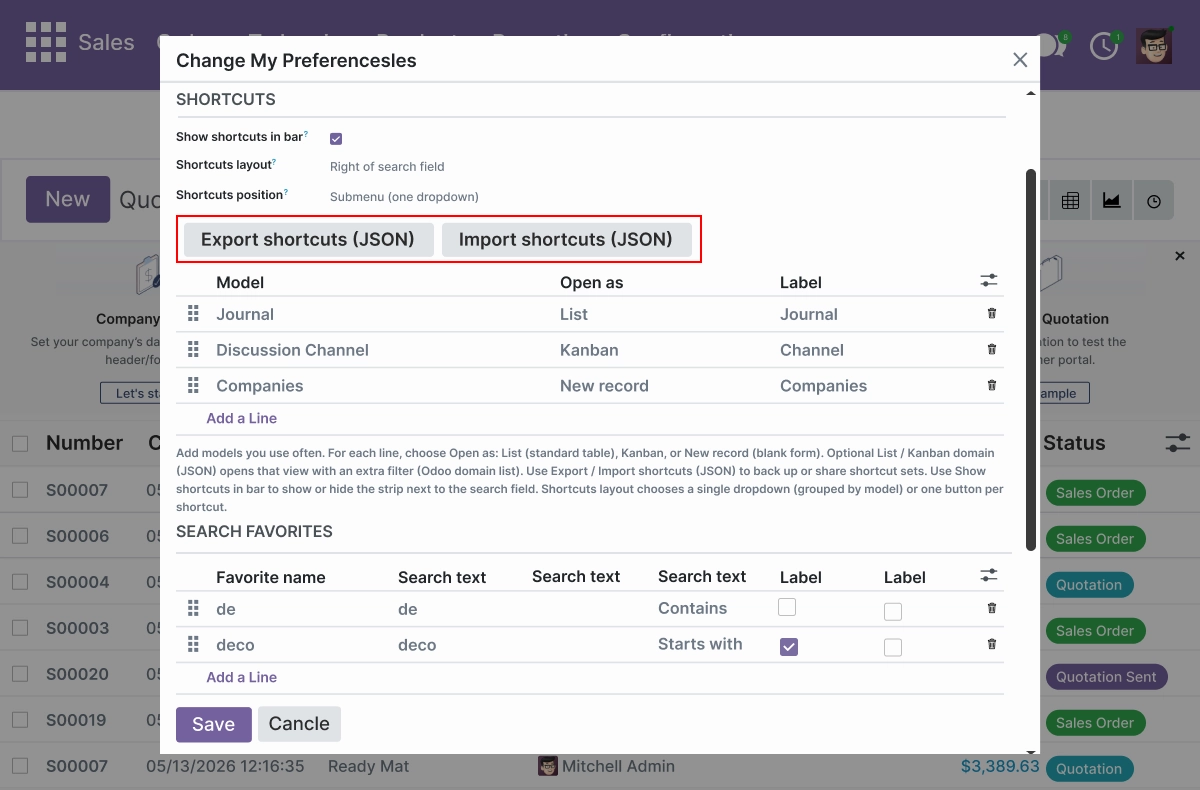
Favorites and Recent Searches - Save Searches, Reduce Repeat Lookups
Save named searches, log recent queries, and manage search history to extend daily productivity and reduce repetitive lookups.
- Save any search using the Save search... link at the bottom of the search dropdown - it appears in the Favorites column with a star icon
- Each saved favorite shows copy and delete controls and can be set with Contains, Starts with, or Exact match mode
- Recent searches appear under the RECENT section in the dropdown for one-click re-run without retyping
- "Didn't find what you were looking for? Try the app menus or your list views." message guides users when no results match
- Clear individual queries or the full search history using the Clear history button visible in the search bar
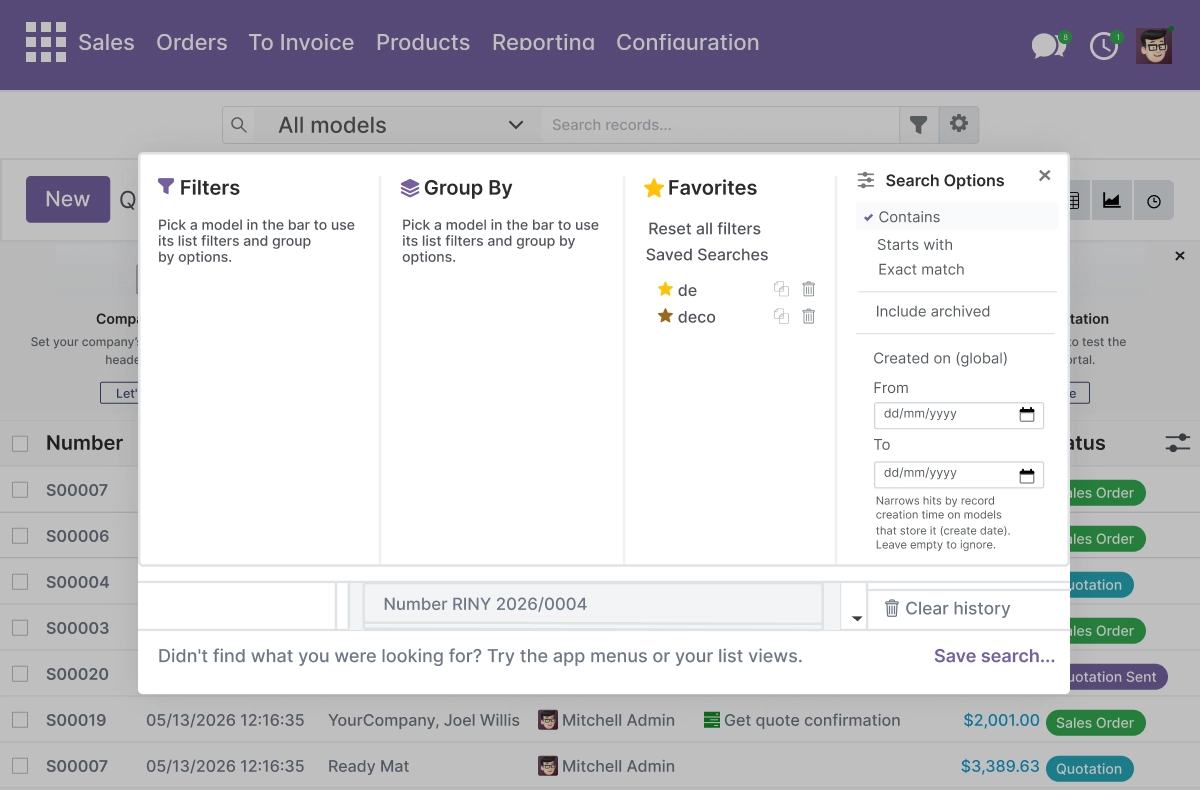
User Preferences - Per-User Layout and Search Settings
Store layout, theme, model scope, and persistence preferences for better per-user search management.
- Set Limit search dropdown to with specific model names or leave empty to search all accessible models
- Choose Search result display as Field details (label : value columns) for readable record identification in results
- Enable Remember filter options to persist match mode, archived, dates, view filters, and group-by settings per user session
- Enable Remember recent searches to keep last queries on the user record for one-click re-run - clear anytime from the bar
- Toggle Show active filters in dropdown, Show Results heading in panel layout, and Show record counts on group headers per user independently
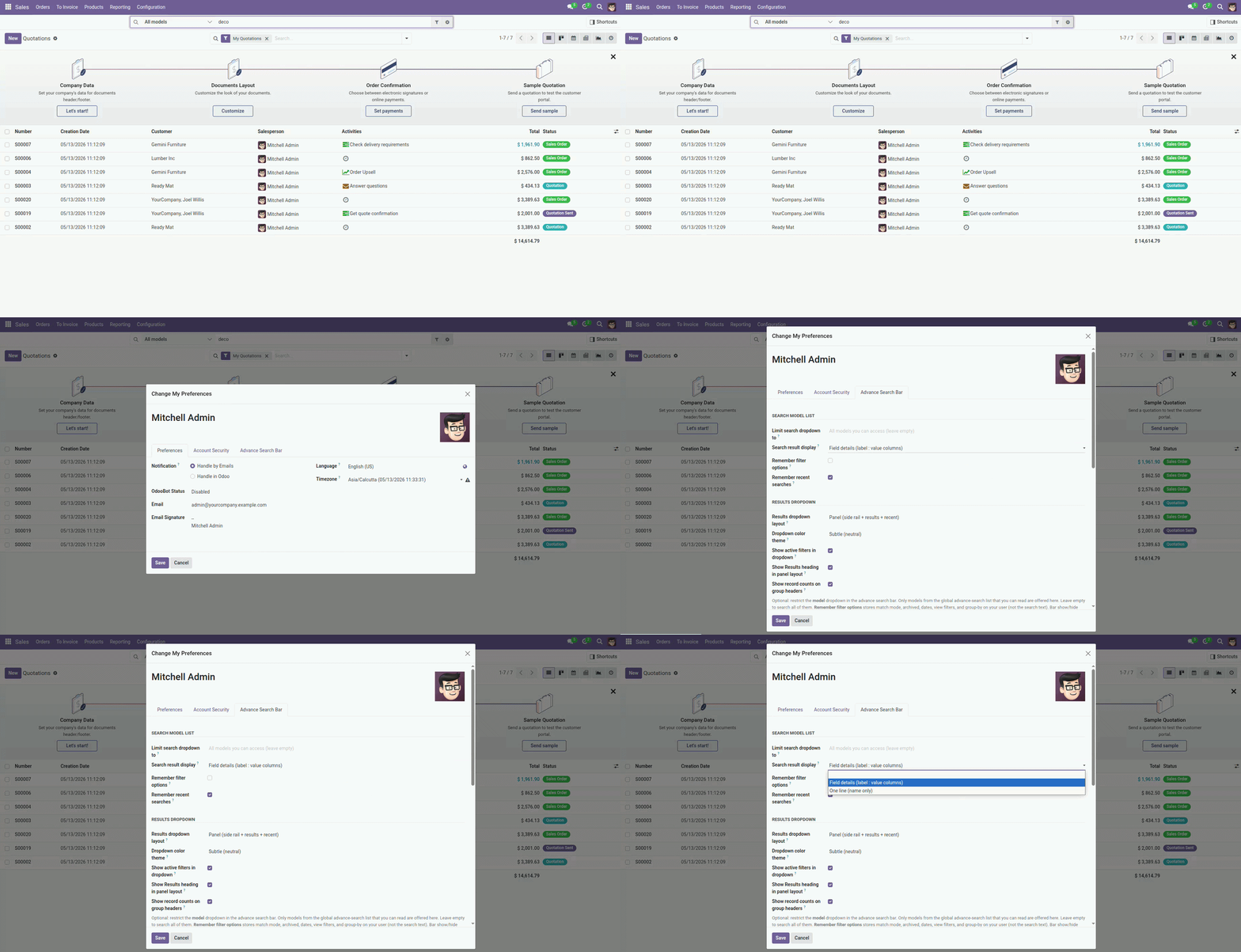
Shortcut Import and Export - Share Shortcut Sets via JSON
Import and export shortcut sets with structured JSON and merge or replace options for fast onboarding and audits.
- Click Export shortcuts (JSON) to download the current user's full shortcut set as a structured JSON file
- Click Import shortcuts (JSON) to upload a shortcut set - choose merge (adds to existing) or replace (overwrites current set)
- The shortcut table structure - Model | Open as | Label - is the same format used in the exported JSON file
- The SEARCH FAVORITES table is also visible in the same panel showing Favorite name, Search text, and match mode (Contains or Starts with)
- Use Export/Import to onboard new users quickly or standardize shortcuts across departments without manual entry
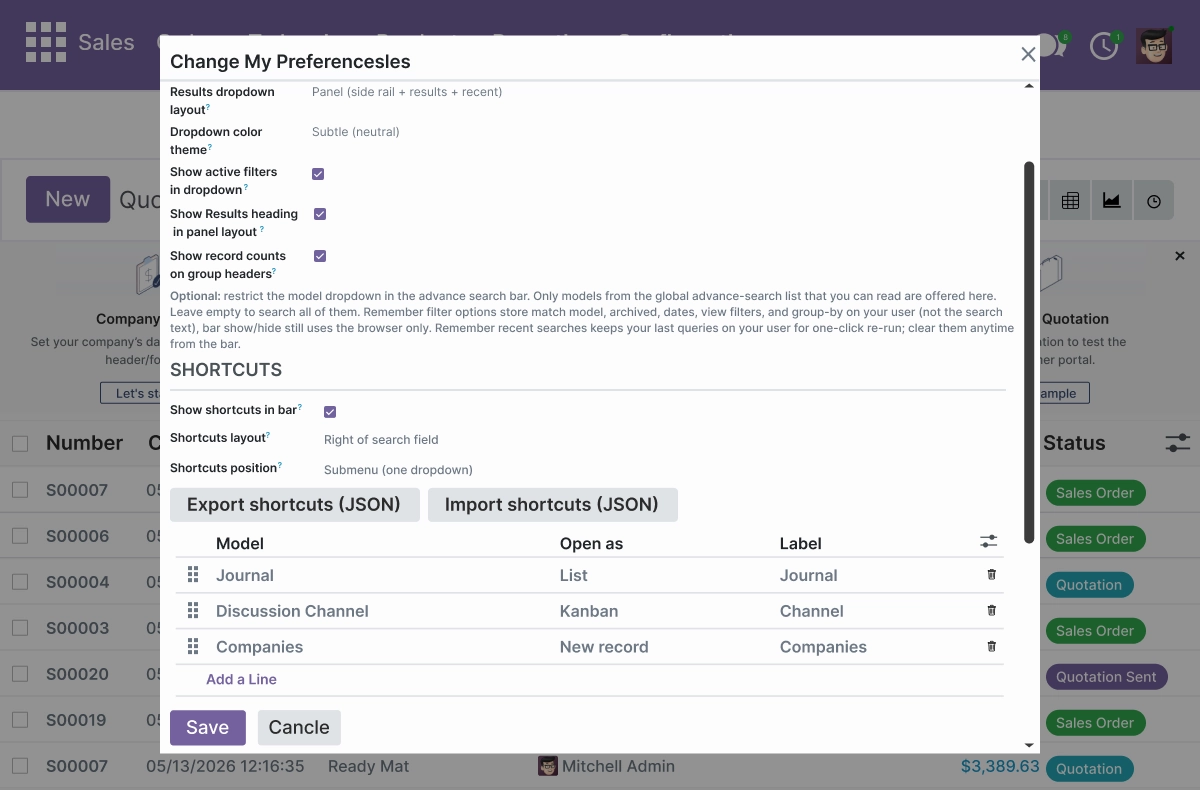
Productivity Overview - Shortcut and Search Activity Summary
Generate dashboards and views to analyze shortcut usage, saved search activity, recent queries, and other key metrics.
- View which models are most frequently selected in the search bar model dropdown across your instance
- Review saved favorite names, match modes, and usage patterns from the preferences panel
- Access the full shortcut set per user - Model, Open as, and Label - to audit what views your team uses most
- Export shortcuts as JSON to review and document the current shortcut configuration for any user
- Use activity patterns from favorites and recent searches to refine model allowlist scope and shortcut setup
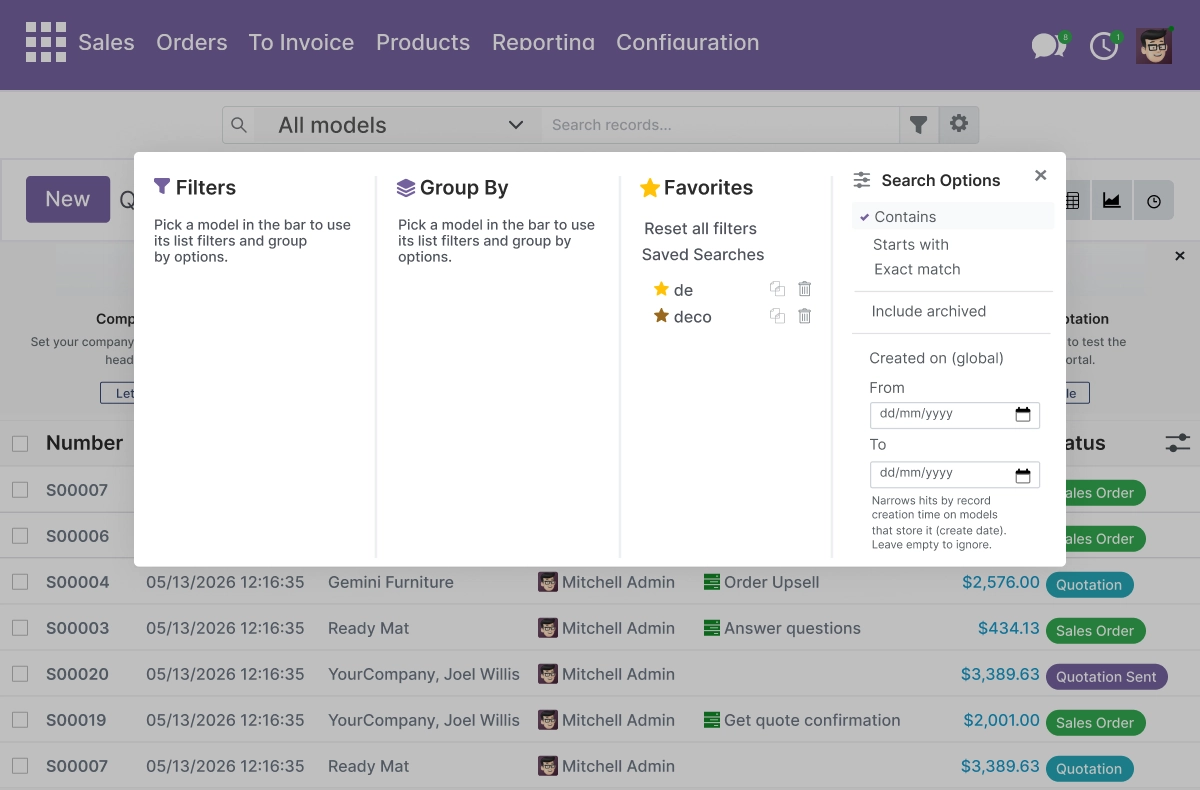
Advanced Filter Mega-Menu - Four-Column Filter with Match Mode
Refine searches and streamline daily search related processes with a four-column filter UI and automation.
- Four-column dropdown panel: Filters, Group By, Favorites, and Search Options open together in one view
- Favorites column shows Saved Searches with star icons and individual Reset all filters, copy, and delete controls per saved search
- Search Options column: choose Contains ✓, Starts with, or Exact match - the active mode shows a checkmark
- Toggle Include archived directly from Search Options to include archived records in the current search
- Use Created on (global) From and To date pickers to narrow results by record creation date - leave empty to ignore
Security and Access Control
Protect sensitive search data and control who can manage shortcuts and search records.
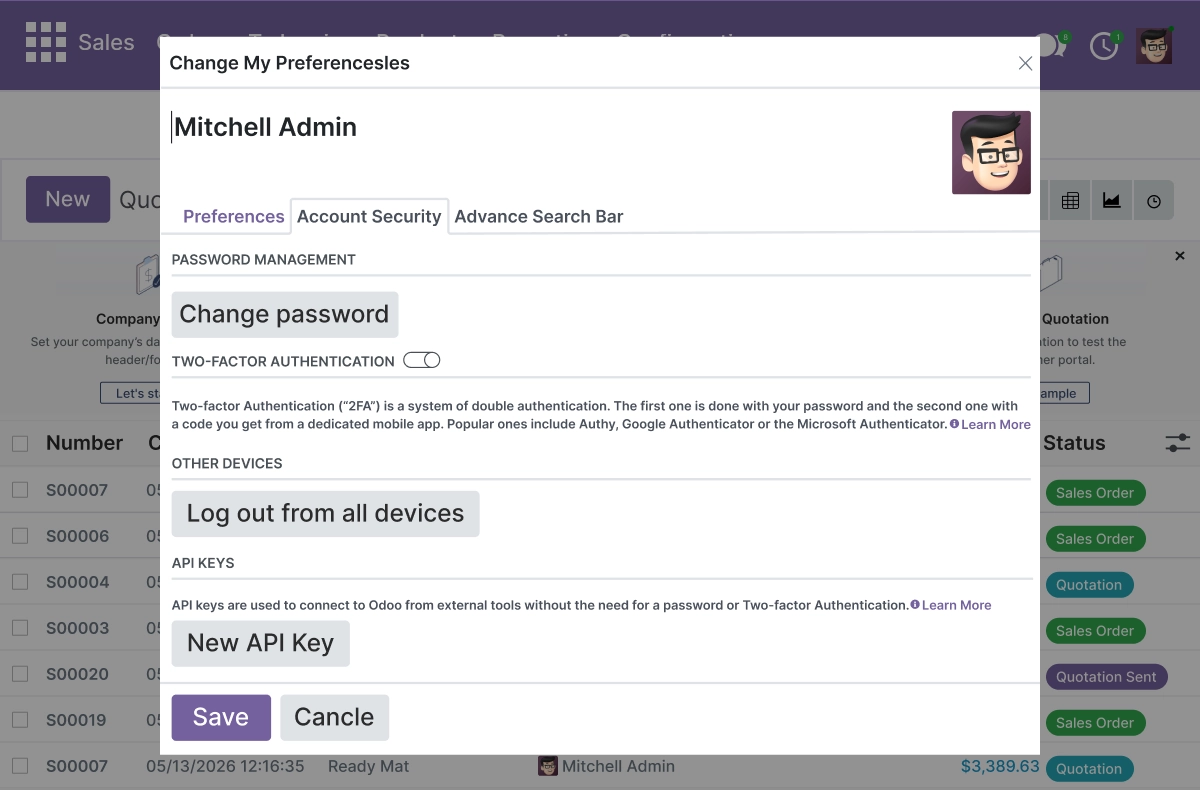
- The app adds a dedicated Advance Search Bar tab to the Odoo user preferences panel, alongside the standard Preferences and Account Security tabs
- Set access rights separately for search bar users and search bar configurators from admin settings
- Restrict who can create, edit, or delete shortcuts and saved search favorites
- Control which users can modify system parameters and search bar configuration settings
- Protect user preferences, shortcut sets, and search history from unauthorized changes while keeping search workflows audit-ready
Advanced Settings and Configuration
All search bar settings are managed from Settings → Search Bar Configuration. Administrators can configure every option - from model allowlist and dropdown layouts to match mode, user preferences, and access rights - without code changes.
Settings are organized into clearly labelled groups. Changes apply immediately after saving. The settings panel covers:
- Model allowlist records and search scope settings
- Standard layout, panel layout, and stacked layout configuration
- Color theme and panel option settings
- Match mode - contains, starts with, and exact match options
- Archived records and created date filter settings
- User preferences tab configuration and shortcut layout behavior
- Shortcut JSON template format and import/export settings
- Access rights for search bar users and configurators
How to Set Up Advance Search Bar
01
Install the App
Install Advance Search Bar in your supported Odoo environment.
Result: The global search bar and search bar settings become available in the Odoo backend.
Result: The global search bar and search bar settings become available in the Odoo backend.
02
Open Search Bar Settings
Go to Settings → Search Bar Configuration.
Result: The model allowlist, layout options, theme settings, and access controls are accessible from one panel.
Result: The model allowlist, layout options, theme settings, and access controls are accessible from one panel.
03
Configure the Model Allowlist
Add the Odoo models you want to include in global search results. Set the match mode and archived record visibility.
Result: The global search bar returns results from only the models your team needs.
Result: The global search bar returns results from only the models your team needs.
04
Set Up Shortcuts and Layout
Create shortcuts to the list views, kanban boards, or new-record actions your users access most. Choose the dropdown layout - standard, panel, or stacked.
Result: Users can access their most-used views directly from the search bar.
Result: Users can access their most-used views directly from the search bar.
05
Configure User Preferences
Each user sets their layout preference, theme, model scope, and persistence settings from their user preferences tab.
Result: Each user has a personalized search experience suited to their daily workflow.
Result: Each user has a personalized search experience suited to their daily workflow.
06
Save and Test
Save all settings and open the Odoo backend to test the global search bar, shortcuts, and dropdown layout.
Result: The Advance Search Bar is live and ready for daily use.
Result: The Advance Search Bar is live and ready for daily use.
Who Is This App For?
- Odoo users who search across customers, orders, invoices, and records daily
- ERP managers and business owners who want faster Odoo backend navigation
- Odoo administrators configuring search behavior and model access for their teams
- Implementation partners delivering productivity-focused Odoo setups for clients
- Power users managing multiple Odoo models from one interface
- Teams with high daily record lookup volume across different Odoo modules
This app is for Odoo backend users only. It is not suitable for businesses looking for website search, frontend search, or eCommerce search functionality.
Changelog
v19.0.0 — Initial Release
- – Added persistent multi-model search bar
- – Added standard, panel, and stacked dropdown layouts
- – Added list-view filter and group-by reuse
- – Added shortcuts and favorites workflows
- – Added recent searches and search history
- – Added shortcut import/export with JSON
- – Added user preferences and personalization
- – Persistent search bar
- – Shortcut management
- – Favorite management
- – User preferences
- – Admin allowlist and system parameter tools
What does Advance Search Bar do in Odoo?
It adds a persistent global search bar to the Odoo backend that searches across multiple models simultaneously - customers, orders, invoices, and other records - from one place. It also adds shortcuts to common views, saved search favorites, per-user layout preferences, and dropdown layout options, all managed from settings without code changes.
Can I search across multiple Odoo models at once?
Yes. You can search one specific model or all models in your allowlist simultaneously. Results appear grouped by model in the dropdown so you can identify records quickly without switching modules.
Which Odoo versions are supported?
The app supports Odoo 16.0 and 19.0.
Does it work on Odoo Online, Odoo.sh, and On Premise?
Yes. The app is available for all three Odoo deployment types.
Can I save searches and access them again later?
Yes. You can save any search as a named favorite accessible from the search dropdown. Recent searches are also logged and available without retyping. Default favorites can be set per user so frequently used searches are ready from the first session.
How do I set up shortcuts for common views?
Shortcuts are configured from the user preferences tab. You can create shortcuts to list views, kanban boards, or new-record actions for any allowed model, choose their position in the search bar, and group them or display them individually.
Can different users have different search layouts and preferences?
Yes. Each user controls their dropdown layout - standard, panel, or stacked - along with theme, model scope, and persistence settings from their own user preferences tab. Administrators can also set default preferences for new users from system settings.
Can I share shortcut configurations between users?
Yes. Shortcut sets can be exported as structured JSON files and imported to other users using merge or replace mode. This is useful for onboarding new team members or standardizing shortcut configurations across departments.
Will this app still work after I upgrade Odoo?
The app is maintained across Odoo versions. The changelog shows active updates from v16.0 to v19.0. Check the changelog for the latest supported version before upgrading.
Is this suitable for Odoo implementation partners and agencies?
Yes. Partners and agencies can use this app to deliver a faster, more productive Odoo backend experience for their clients, including configuring model allowlists, user preferences, and shortcut sets as part of an Odoo implementation.